QuantumHy
ActiveHytale • Version 0.4.0
QuantumHy makes your client run smoother in Hytale by cutting how much the server tells it to draw, and it adjusts that per player depending on where you are. Out in the open you keep your full view; in a crowded, expensive spot it pulls things in so your FPS does not tank.
The Hytale client is native, so no mod can touch the renderer. What a server mod can do is decide how much each client has to render, and that is the whole trick: fewer chunks and entities in view means fewer things to draw, which means more frames.
Two honest limits. It only helps where it is installed (your solo world, your own server, or a server that runs it), not on a server you merely join. And it never pushes your view past what you asked for: your own view radius is the cap, QuantumHy only ever pulls it down.

Performance
I played the same session twice on Hytale 0.7.0: once without QuantumHy, once with QuantumHy 0.4.0 on its default config. Same world, same path, same client settings, same PC. Frame times come straight from the Hytale client, captured with PresentMon (the capture tool inside CapFrameX).
Test PC
| Component | Spec |
|---|---|
| CPU | AMD Ryzen 5 3600 |
| GPU | NVIDIA GeForce GTX 1650 4GB |
| RAM | 16 GB (2×8 GB) |
What I did in each part
- Fast flight (60 s): flew in a straight line over terrain nobody had loaded yet, much faster than you can sprint, so new chunks have to be generated and sent the whole time.
- Mob crowd (90 s): stopped and spawned about 150 animals around me (sheep, cows, pigs, goats, chickens, boars).
- Effects (60 s): stayed on the crowd and spammed explosions, fire and hit particles on top of it.
- Circling (60 s): flew laps around the crowd with lighter effects still going, so the camera keeps sweeping across the mobs.
- Flight back (60 s): flew back the same way I came.
Results
| Part | Without QuantumHy (avg / 1% low) | QuantumHy 0.4.0 (avg / 1% low) | Frames over 50 ms |
|---|---|---|---|
| Fast flight | 65 / 7 | 142 / 48 | 40 → 1 |
| Mob crowd | 75 / 21 | 128 / 73 | 6 → 0 |
| Effects | 76 / 41 | 121 / 79 | 0 → 0 |
| Circling | 54 / 19 | 115 / 58 | 12 → 0 |
| Flight back | 58 / 15 | 107 / 42 | 30 → 1 |
| Whole session | 66 / 14 | 123 / 56 | 88 → 2 |
1% low is the average of the slowest 1% of frames, the number that tells you how bad the stutters get.
Click a chart to open it full size.
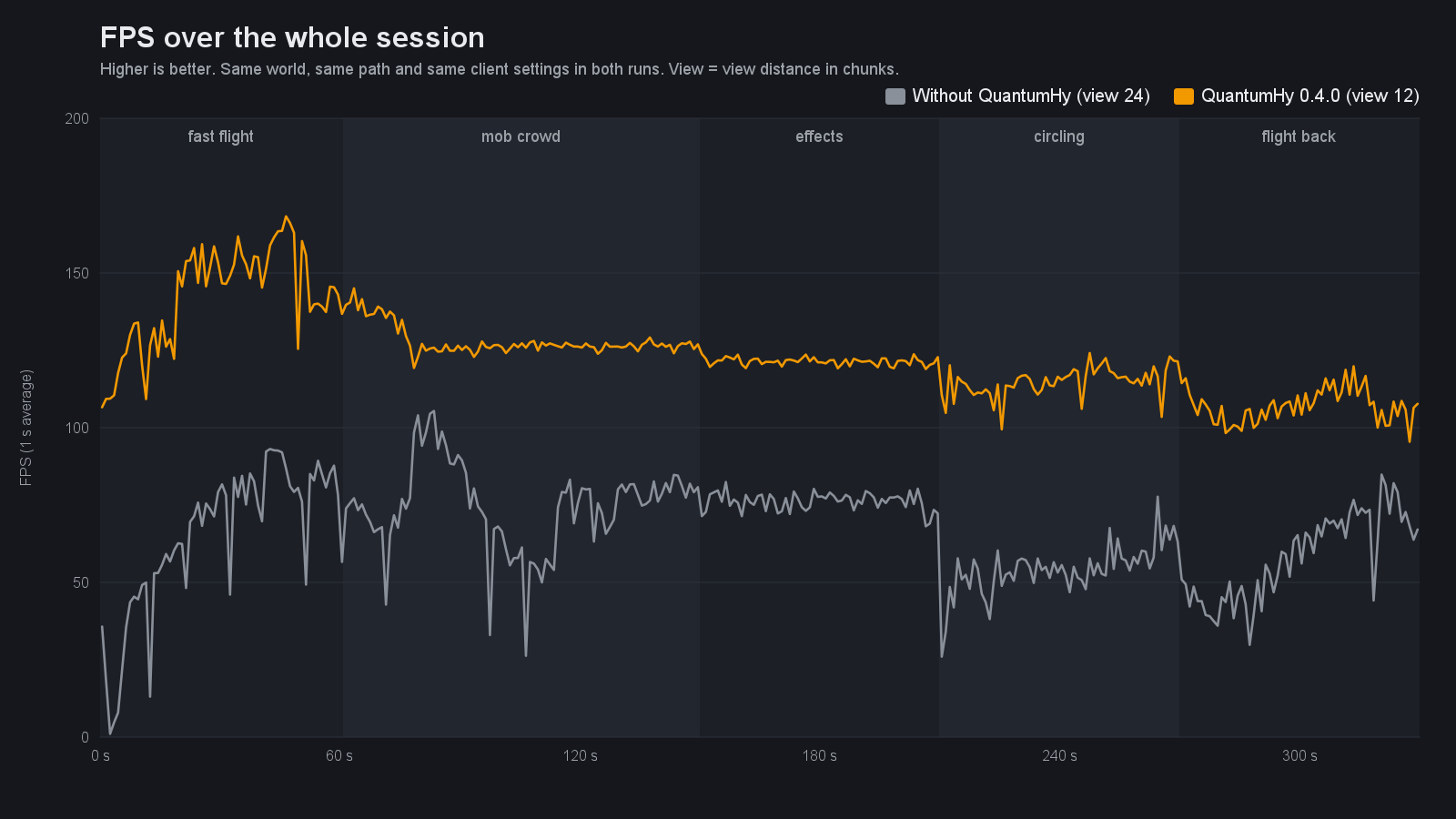
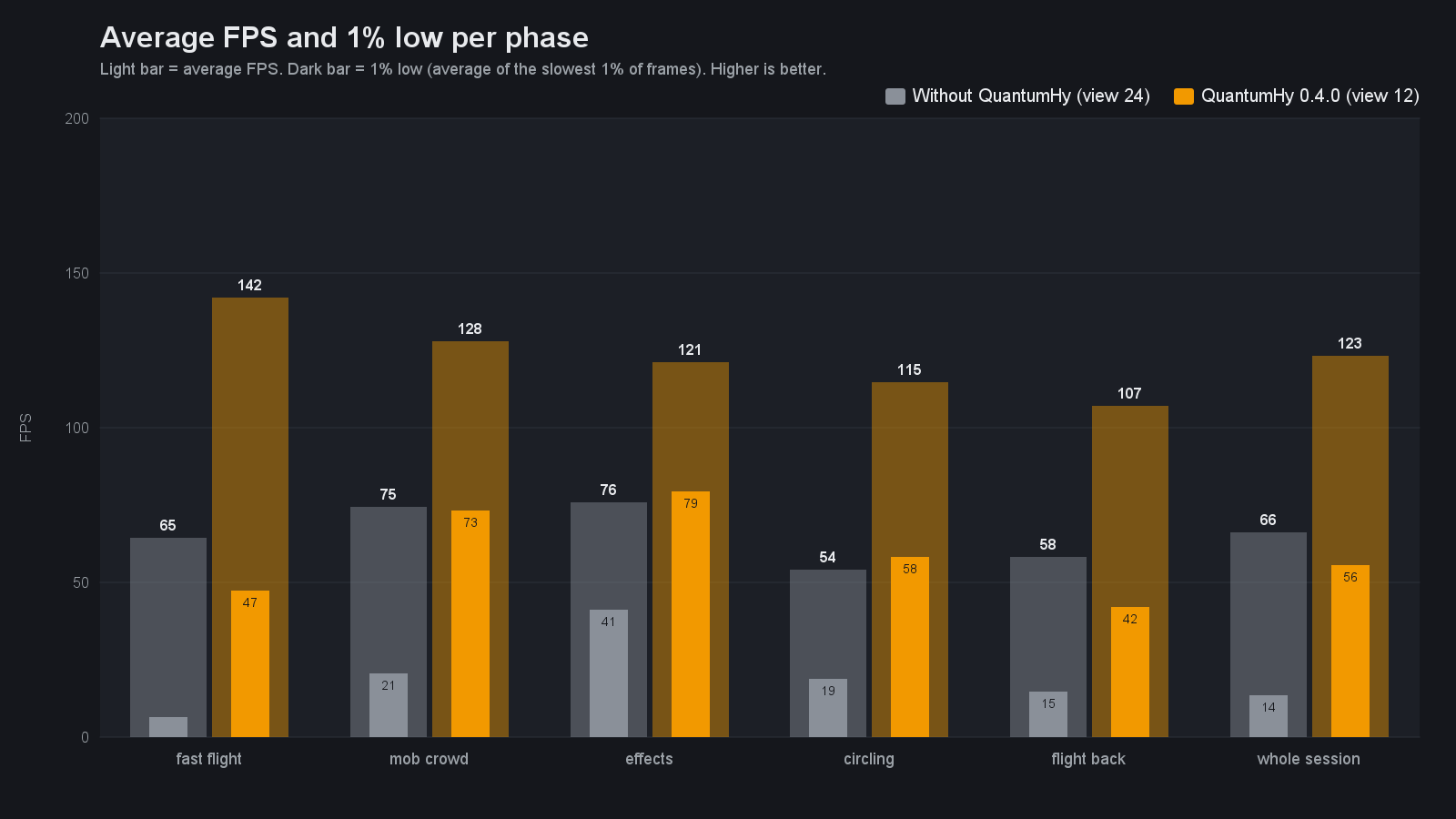
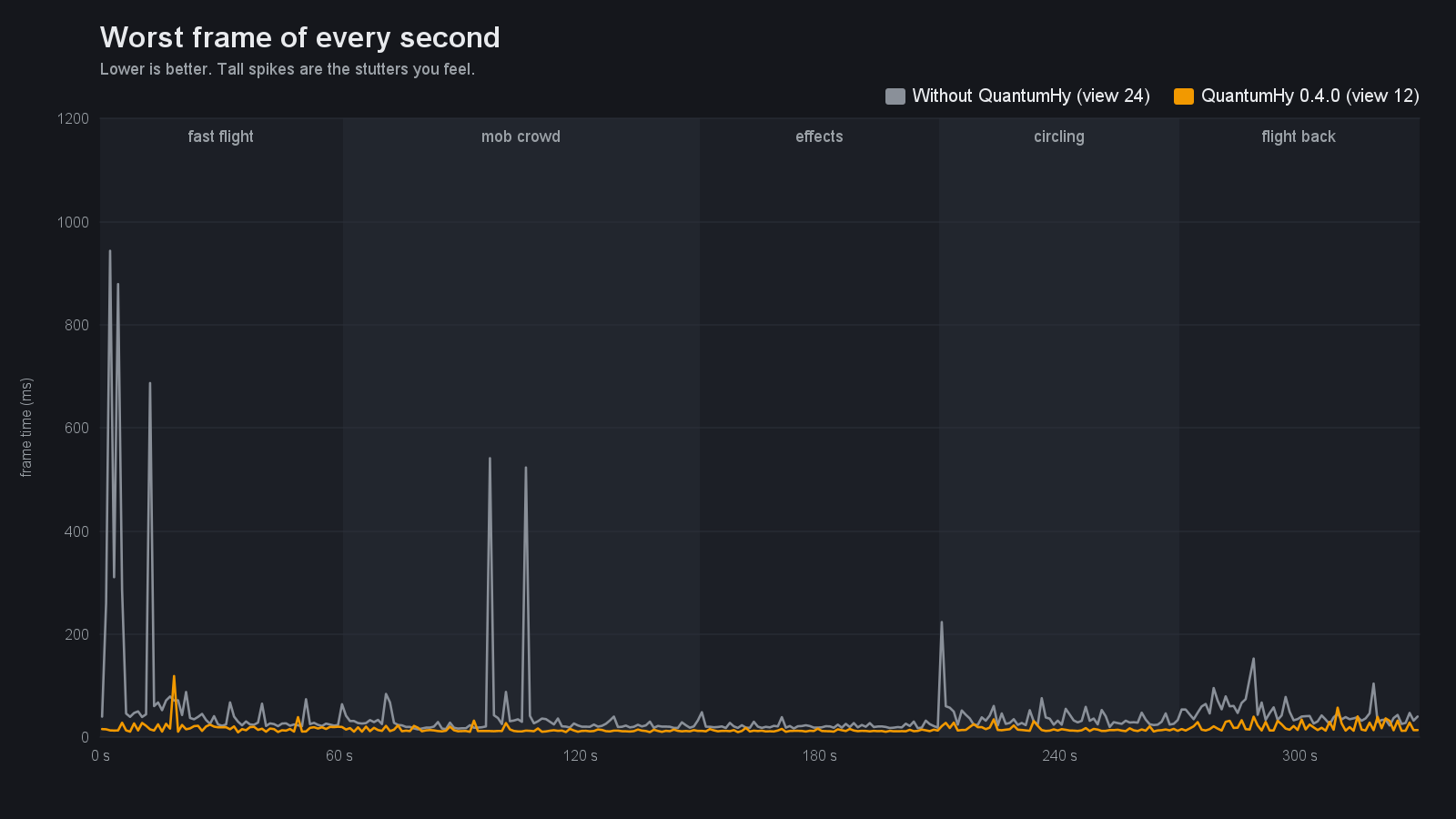
Where the frames come from
- Without QuantumHy the client drew a view of 24 chunks and got every mob within 768 blocks. With QuantumHy it settled at 12 chunks and mobs within 48 blocks (about 190 visible entities down to about 50). That is the trade: you see less far, and the crowd stops costing you frames.
- In the fast flight the edge of the view loads a little behind you, because nobody moves that fast in survival. Normal sprinting (7 blocks/s) is well inside what the chunk stream keeps up with.
- One session per setup, so differences under ~5% would be noise. The gaps above are not.
How it works
Every few seconds QuantumHy counts the entities in the chunks around each player as a stand-in for render cost, smooths that signal, and turns it into a single shrink factor. That one factor drives two levers at once:
- The chunk view radius, so distant terrain stops streaming when it is busy.
- The entity stream radius in blocks, so the server stops sending far-off mobs. This is independent of chunks and is where most of the gain comes from when you are looking at a crowd.
Radius does not snap back the moment the area looks empty. Expand waits until load is calm, at least half the density disk is loaded, you are not flying, and the world is not hitching. While streaming or joining, cuts are held so the client is not told to drop chunks it is busy loading. At full shrink the entity radius drops to the floor in one pass.
Features
- Adaptive chunk view radius driven by local entity density, capped at your own view radius
- Adaptive entity stream radius in blocks, the big lever in mob-heavy areas
- Expand freeze until load, coverage, and MSPT are calm (no 6↔13 sawtooth)
- Persistent per-player opt-out through
/q optimize off, without affecting other players - Optional global entity LOD override, disabled by default, for admins who want stronger world-wide culling
- Density smoothing so a moving player’s view does not flip-flop
- Automatic LeanCore takeover so the two mods never fight over the view radius
- Optional verbose server log that explains every decision per player per pass (off by default)
- Update check on startup, sent only to operators or
durkz.quantumhy.admin(opt out withcheckForUpdates) - Client draw distance cap so the client stops drawing what the server stopped sending
- Strained-client easing: a client that falls behind gets a tighter radius and a gentler chunk rate
- Far effects budget for particles and 3D sounds; effects close to you always go through
- LeanCore memory awareness: tighter radius while LeanCore reports the heap as tight
- Optional extras, off by default: fewer position updates for far entities, wider item merge under server pressure
Installation
- Download QuantumHy-0.4.0.jar from the CurseForge Files tab
- Place the JAR in your server’s mods/ folder, or on Windows solo:
%AppData%\Hytale\UserData\Mods - Start the server. Config is created as QuantumHy.json in the plugin data folder
Commands
/q status
/q optimize on
/q optimize off
/q help
Aliases: /quantumhy, /qhy. Players see only their own optimization state in /q status; admins and the server console see the full runtime status.
Config
Server settings live in QuantumHy.json, created on first run. Per-player choices are stored in PlayerPreferences.json. Defaults work out of the box: no hard view cap, adapt only when crowded. Set targetClientViewRadius above 0 to trade some view distance for FPS everywhere. Set checkForUpdates to false to skip the startup version check. Full key reference: documentation.
Permissions
durkz.quantumhy.admin: receive in-game update notices and see the full/q status. Server operators inherit this through*.
Running it with LeanCore
If you run LeanCore too, QuantumHy sorts out the overlap for you. Both can set the client view radius and only one should, so QuantumHy takes it: on startup it detects LeanCore, turns off LeanCore’s view-radius governance, and drives the view radius itself. LeanCore keeps doing everything else (simulation radius, chunk throughput, memory). You do not have to touch LeanCore’s config. Set leanCoreTakeover to false to leave LeanCore alone, or yieldToLeanCoreViewRadius to true to let LeanCore keep the view radius instead.
Recommended
- Solo or your own server: leave the defaults. You only lose view distance when it is actually crowded.
- Want FPS everywhere: set
targetClientViewRadiusto a value like 12 to 16 to cap view distance even in the open. - Prefer the original server limits: use
/q optimize off. Your choice persists across restarts. - Turn
verboseLogon only while diagnosing; it is off by default. - Leave
checkForUpdateson unless you do not want operators to see a newer-JAR notice.
Known limitations
- QuantumHy cannot read client FPS. It responds to local entity density, streaming state, visible entity pressure, and server MSPT.
/q optimize offdisables the per-player view and entity-stream adjustments. Explicit global controls enabled by an admin still apply to the world.
License
MIT License
For server owners
Need permissions, commands & config?
The full administration guide covers every permission node, admin command, LuckPerms examples, and all config options.
Read server documentation